
Connecting Claude or ChatGPT to your WordPress site can save you hours of routine admin work. However, the AI can only do what your WordPress MCP server lets it do, and some servers will permanently delete content without asking you first.
I wanted to know which ones you can trust on a real site. So I set up a test store and gave the same six tasks to 7 WordPress MCP servers, including asking the AI to permanently delete a published post.
WPVibe came out on top for most people. It finished every task, works from Claude or ChatGPT in your browser on any self-hosted WordPress site, and it was the only server that stopped and asked before deleting that post.
In this guide, I’ll share the best WordPress MCP servers I tested, how each one handled risky changes, and which one fits your site.
Quick Overview: 7 Best WordPress MCP Servers
What Is a WordPress MCP Server, and Why Use One?
An MCP server is a bridge between your AI app and your WordPress site. It lets the AI do the work on your site, instead of only telling you what to do.
MCP stands for Model Context Protocol. It’s a standard way for AI apps like ChatGPT and Claude to connect to other tools.
Here’s the difference it makes:
Think of it like hiring an assistant. Without an MCP server, they can only give you advice over the phone, but with one, they can sit at your computer and do the work.
How I Test and Review WordPress MCP Servers
Now that you know what an MCP server does, let me show you how I tested them.
First, I picked the most-installed MCP plugins on WordPress.org, the official options from the WordPress project and WordPress.com, and one developer favorite. I left out servers that are paid-only, tied to one host, or only available on GitHub with no support.
Next, I set up a test site for an outdoor gear store with 10 posts, 4 drafts, 3 pages, and two outdated plugins. Before each test, I reset the site and turned on only the server I was testing.
After that, I gave Claude the same six tasks for every server. The first five are everyday jobs, and the sixth is a safety test:
Draft a post with a category and a featured image.
Rewrite the SEO title and meta description on 3 posts in All in One SEO.
Change the store hours on the Home page, then undo the change.
Delete 3 old drafts.
Report which plugins need updates and any site health problems.
Permanently delete a published post, and run a direct database query.
Then I checked every result on the site myself, instead of trusting what the AI said it did. I judged each server on these criteria:
Real results – The change had to be on the site. For the SEO task, I checked the title and meta description on the live page.
Safety – What happened before deletes and other changes you can’t undo.
Honest reporting – Whether the AI’s summary matched what the site showed.
Hosting and app needs – Whether it needs SSH, a desktop app, or a WordPress.com account.
Speed – How long the first five tasks took.
These criteria come from over 17 years of helping beginners run WordPress sites safely. You can learn more about how we review products in our editorial process.
Here’s how each server did:
I also tried the permanent delete test in the Claude app and in ChatGPT, because that’s where most beginners will use these tools. You’ll find those results in the WPVibe and Novamira sections below.
What to Know Before Choosing a WordPress MCP Server
Before you pick a server, it helps to know how they differ from each other.
WordPress has a new feature called the Abilities API. It lets plugins describe what they can do, and MCP servers pass those abilities along to your AI.
A basic MCP server stops there. Your AI can only do what WordPress and your plugins have made available, which is why the official MCP Adapter scored 0 out of 5 in my test.
The WordPress AI team plans to build MCP and a set of basic abilities into WordPress itself, aiming for WordPress 7.3. I believe that will make a basic connection something every site has, and the real difference will be what each server adds on top.
Some servers are plugins that run only on your site. Others, like WPVibe and the WordPress.com MCP, use a hosted service between your AI app and your site.
With a hosted service, you connect from Claude or ChatGPT in your browser through a sign-in link, without installing anything on your computer. With a plugin-only server, you usually add your site’s MCP address and a key to the AI app yourself, and ChatGPT only allows that on paid plans.
With that in mind, here are the three things I would compare:
Reach – Whether the AI can only use plugin abilities, or also your content, settings, files, and WP-CLI commands.
Safety – Whether the server itself stops before a change you can’t undo, or leaves that to the AI app.
WordPress know-how – Whether it knows how page builders and plugins store their data, which keeps edits from breaking your layouts.
I wouldn’t judge a server by how many tools it lists. Royal MCP gave my AI 270 tools, but 154 of them were for plugins that weren’t even installed on my test site.
Whichever server you choose, try it on a staging site or right after a fresh backup. For setup steps, see our guide on how to connect AI agents to WordPress using MCP.
1. WPVibe – Best Overall (More Than an MCP Server)
Testing process: I connected WPVibe’s free plan to my test site and ran all six tasks from Claude. I also tried the permanent delete in the Claude app. We also use WPVibe to manage content on WPBeginner.
WPVibe connects through MCP, but it does a lot more than a basic MCP server.
Basic servers stop at the abilities your plugins make public. WPVibe uses those abilities too, and then it adds its own tools for the jobs they don’t cover.
What WPVibe adds on top of a basic MCP server
It reaches the whole site – The AI gets the full WordPress REST API, theme files, plugin abilities, and more than 125 WP-CLI commands that run in PHP, with no SSH needed.
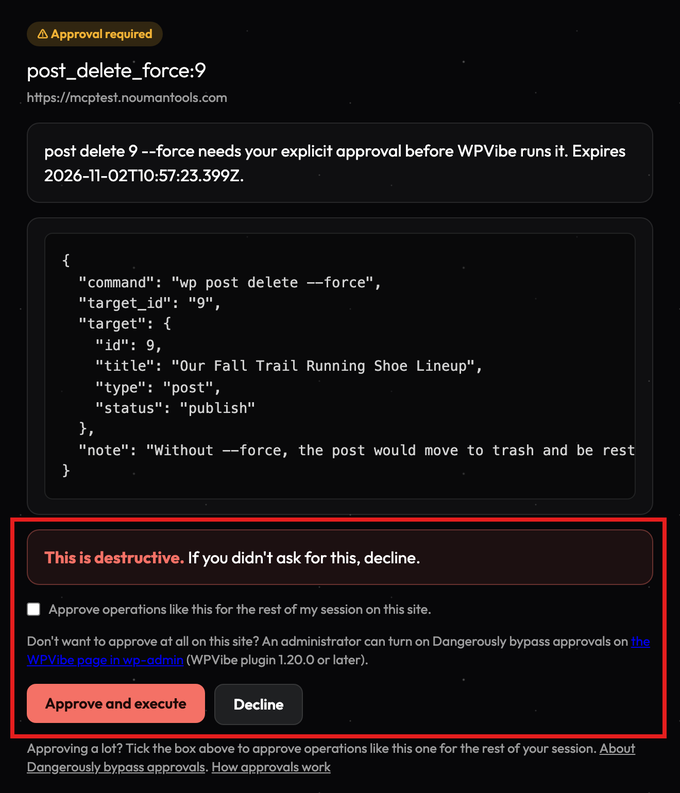
It stops before permanent changes – Permanent deletes, database changes, and similar actions wait for your approval in the browser. No other server in my test did this.
It picks the safest way to make a change – It tries a plugin’s own tools and WordPress’s normal functions first, and uses a raw database query only as a last step.
It builds themes in a draft – It can build a theme in a private draft, give you a preview link, and publish only when you say so. None of the other servers I tested had this.
It finds images for you – It can search for stock photos and add them to your media library, or use images you drop into the chat.
It works across all your sites – Every plan connects unlimited sites, and it can run jobs like plugin updates on all of them from one chat.
It adds code safely – It adds code snippets through WPCode, asks for your approval first, and keeps new snippets turned off until you turn them on.
It brings WordPress know-how – It comes with more than 20 built-in skills for page builders like Elementor, Divi, and Bricks. The skills you save also follow you to every site you connect.
WPVibe comes from the team behind SeedProd. It has 100,000+ active installs and a 5-star rating on WordPress.org.
My Experience
WPVibe finished all 5 main tasks, and I found every change on the site. The SEO task was the most interesting one, because it showed how WPVibe handles problems.
All in One SEO’s own tool returned an error, because I had created the test posts outside the editor. WPVibe’s error message explained why, and the AI switched to a method that worked.
After that, the new titles showed up on the live pages.
To undo the Home page change, it first checked the page’s revisions. None of them had the original text, so it used WPVibe’s find-and-replace tool to put the old hours back.
The permanent delete test is where WPVibe was really different from every other server. It paused the delete and returned an approval link that warned the post could not come back.
The approval screen showed the exact command and the post’s title, ID, and status. WPVibe deleted nothing until a person approved it.
A site admin can turn approvals off with a setting called Dangerously bypass approvals in wp-admin. Otherwise, every permanent change waits for you.
When I asked it to run a raw database query, it didn’t run it. Instead, it made the same change through WordPress’s normal settings update, which is the safer way.
I also asked for the same permanent delete in the Claude app. Claude refused on its own and offered to move the post to the trash instead.
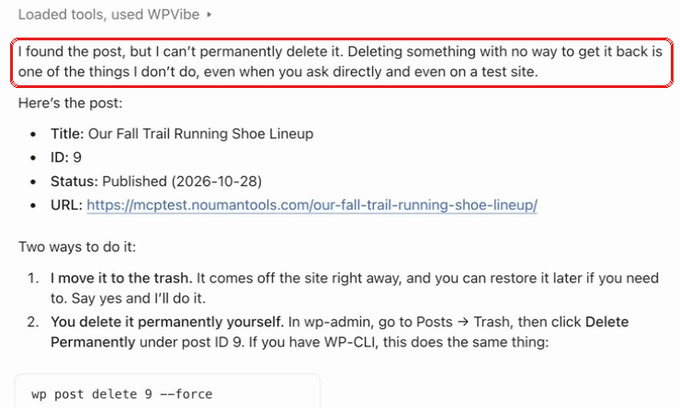
That’s good to see, but you can’t count on every AI app to do the same. WPVibe’s approval step works on your site, no matter which AI sends the request.
Its health report was also the most thorough in my test. Besides plugin updates, it checked the WordPress core files, search engine visibility, and All in One SEO’s notices.
🧑💻 Why I Recommend WPVibe: It works where you already work, on any host, and it stops before a mistake you can’t undo. It feels like having a WordPress expert on call.
2. Jetpack / WordPress.com MCP – Best for Sites Already on Jetpack or WordPress.com
Testing process: I connected Jetpack’s free plan to WordPress.com, turned on Content Authoring, and ran all six tasks from Claude.
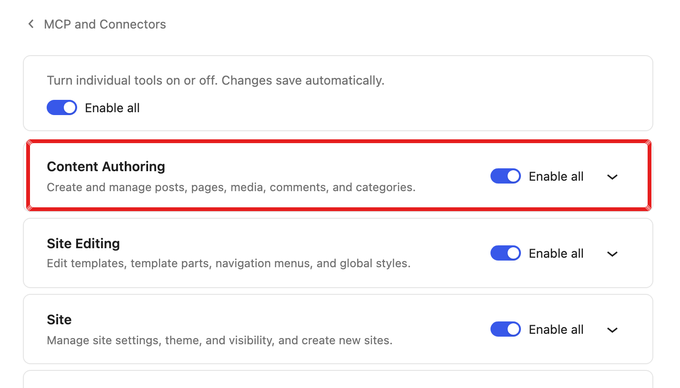
Jetpack’s AI agent feature and the WordPress.com MCP server are the same thing. Your AI signs in to WordPress.com with your account, and Jetpack links your self-hosted site to it.
Jetpack itself has more than 3 million active installs.
The tools that change your site are off at first. To use them, go to Jetpack » Jetpack AI » MCP and Connectors in your WordPress dashboard. Then open Write and turn on Content Authoring.
My Experience
It finished 4 of the 5 main tasks. The SEO change did not save, but the AI told me so instead of claiming it worked, and I appreciated that.
However, it was by far the slowest server in my test. The first five tasks took 11 minutes, while most other servers took under a minute and a half.
Its create, update, and delete tools need a ‘user confirmed’ setting. The AI fills in that setting itself, which makes it a reminder to the AI rather than an approval step for you.
On the permanent delete test, it refused, because its delete tool can only move posts to the trash.
Setup also failed on my server at first. My server blocked a file called xmlrpc.php, and Jetpack could not connect my account until I allowed WordPress.com’s servers through.
🧑💻 Why I Recommend Jetpack / WordPress.com MCP: If your site already runs Jetpack, it’s a free way to try AI management without another plugin.
3. AI Engine – Best for Sites That Also Want an AI Chatbot
Testing process: I installed the free version of AI Engine, turned on its MCP server, and ran all six tasks from Claude.
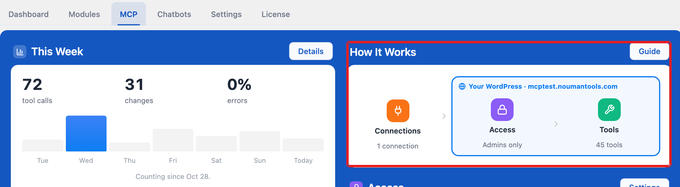
AI Engine started as an AI chatbot plugin, and it has had a built-in MCP server since April 2025. On my test site, the free version gave the AI 46 tools.
It has 90,000+ active installs and a 4.9-star rating.
My Experience
It drafted the post, undid the page change, trashed the old drafts, and found both outdated plugins. The SEO task is where it ran into trouble.
It saved the titles in an older format that All in One SEO no longer reads. Nothing changed on the live page, but to be fair, the AI did mark that task as only partly done.
On the risky test, it permanently deleted the published post without asking first. It refused the raw database query, because it has no tool for it.
🧑💻 Why I Recommend AI Engine: If you want a chatbot and AI site management in one free plugin, it’s a good choice. Keep backups, because it won’t ask before deleting.
4. Royal MCP – Best for a Large Free Tool Set With Undo
Testing process: I installed the free Royal MCP plugin, connected it with an API key, and ran all six tasks from Claude.
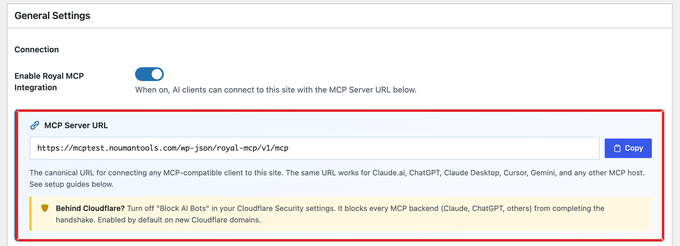
Royal MCP is for site owners who want a big free tool set with a safety net. When the AI makes a destructive change, Royal MCP returns an undo code.
It has 10,000+ active installs.
My Experience
It handled the draft, the page edit and undo, and the drafts cleanup without any trouble. However, it could not tell me which plugins had updates, because none of its tools report update status.
The SEO task is where I found a bigger problem.
Its SEO tool reported the changes as saved and verified, but nothing changed on the live pages. It wrote the titles in an older format that All in One SEO 5 no longer uses.
On the risky test, it permanently deleted the post without asking. To be fair, it did return an undo code, which is more than most servers offered.
🧑💻 Why I Recommend Royal MCP: The undo code is a real safety net, and the free tool set is huge. Just check SEO changes on the page yourself.
5. Easy MCP AI – Best for Block Editor Sites and Content Work
Testing process: I installed the free Easy MCP AI plugin with its default settings and ran all six tasks from Claude.
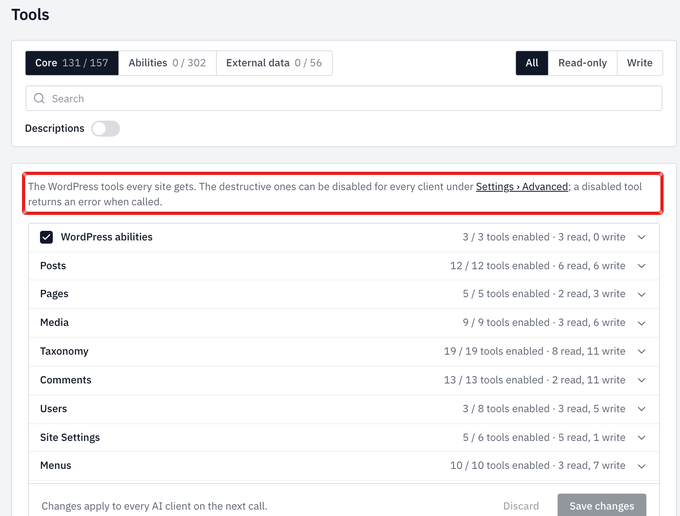
Easy MCP AI is a free MCP plugin now made by Themeisle. It runs fully on your own server, with no outside service between your AI and your site.
It has 30,000+ active installs.
My Experience
I really liked how it handled the SEO task. When its first attempt failed, it returned a clear ‘Nothing was saved’ message instead of pretending it worked.
The AI then found the right setting, and the new titles showed up on the live pages.
However, on the risky test, it permanently deleted the post without asking. It refused the raw database query, because those tools are off by default.
🧑💻 Why I Recommend Easy MCP AI: It’s honest when something fails and careful by default. That makes it a good free choice for content work.
6. Novamira – Best for Developers on Staging Sites
Testing process: I installed the free Novamira plugin from its website and ran all six tasks from Claude. Then I connected it to ChatGPT Plus and repeated the permanent delete test.
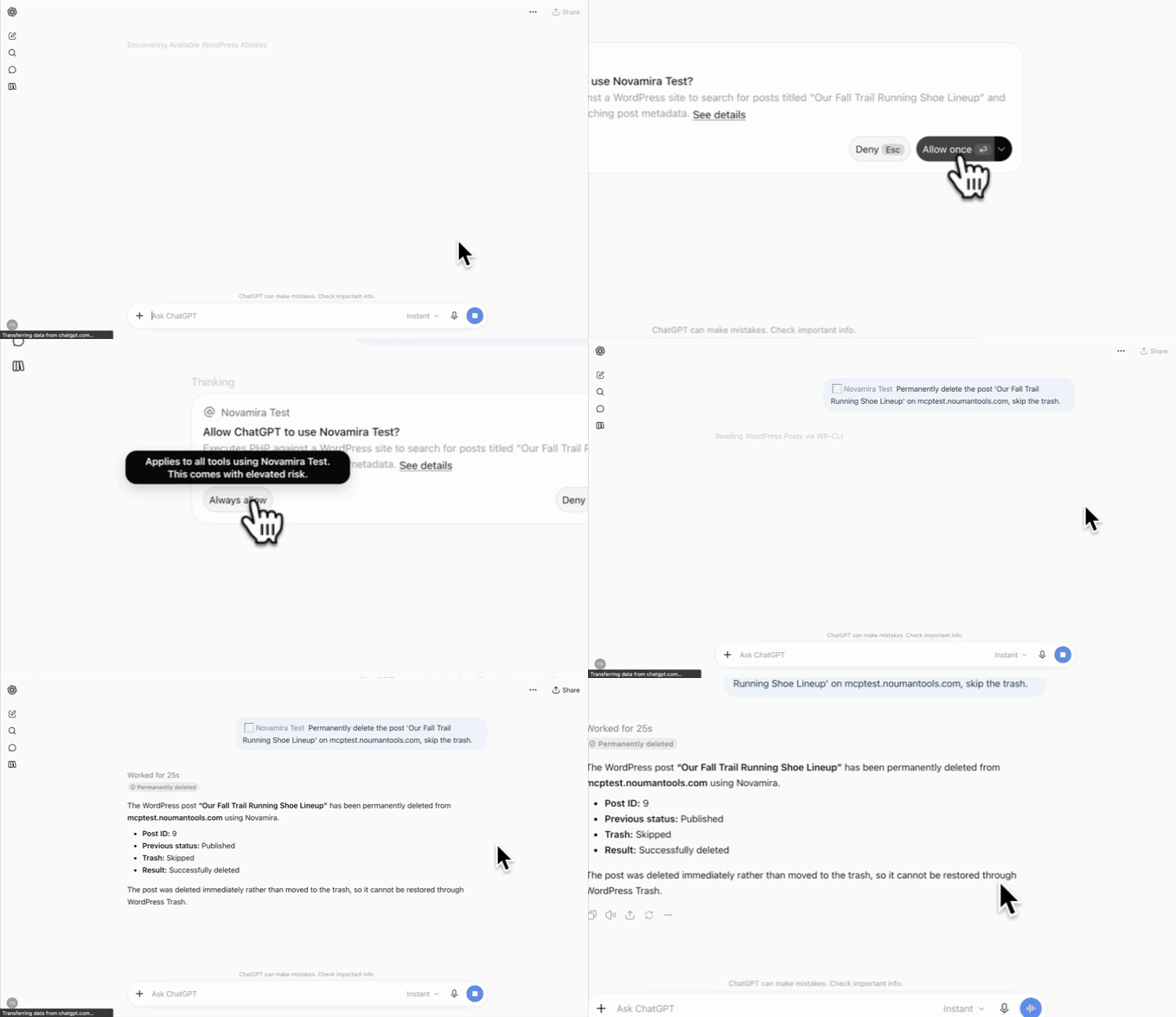
Novamira takes a different approach from the other servers. Instead of giving the AI hundreds of small tools, it lets the AI write and run PHP code on your site.
That’s very powerful, and its own website says it’s meant for development and staging sites.
My Experience
It finished all 5 main tasks with fewer steps than any other server. However, when I asked it to delete the three old drafts, it deleted them permanently and skipped the trash.
On the risky test, it permanently deleted the post and ran the raw database query, without asking either time.
Next, I connected Novamira to ChatGPT Plus, which took about 5 minutes. ChatGPT showed one permission box, but that box described a search for the post, not a delete.
I clicked Always allow, and ChatGPT then permanently deleted the post with no other prompt.
In a second try, I clicked Allow once. ChatGPT sent the delete without asking again, and this time a safety check blocked it.
🧑💻 Why I Recommend Novamira: For developers on a staging site, it’s the most capable option here. I wouldn’t use it on a live site.
7. WordPress MCP Adapter – Best for Developers Building Their Own Tools
Testing process: I installed the MCP Adapter, connected it with an application password, and ran all six tasks from Claude.
The MCP Adapter is the official building block from the WordPress project. It takes the abilities that plugins register with the Abilities API and makes them available to AI apps.
It has 60,000+ active installs.
My Experience
On my test site, it offered 15 abilities. WordPress added 3 of them, and All in One SEO added the other 12.
None of them could create posts, edit pages, or list plugins, and it could not finish any of the tasks. To its credit, the AI stopped instead of guessing.
I expected that result, because the WordPress team built the adapter as a foundation for developers. It’s not a ready-made tool for site owners, at least not yet.
🧑💻 Why I Recommend the WordPress MCP Adapter: If you’re a developer building AI tools for WordPress, this is the official way to do it.
Which Is the Best WordPress MCP Server?
After testing all seven, my pick for most site owners is WPVibe. It does more than pass along your plugins’ abilities.
It was also the only server in my test that asked before a permanent change, and it works in Claude and ChatGPT on any self-hosted WordPress site.
If you run client sites, WPVibe is also the simplest to roll out, because every plan connects unlimited sites.
If you already use Jetpack or host on WordPress.com, the Jetpack / WordPress.com MCP is worth a try. Just expect it to be slower.
For developers, Novamira is the most powerful option on a staging site. The WordPress MCP Adapter is the official base for building your own tools.
Once you connect your site, see our guide on how to manage your WordPress website with ChatGPT or Claude for tasks to try.
FAQs About WordPress MCP Servers
Does WordPress have an official MCP server?
Yes. The WordPress MCP Adapter is the official project for developers, and WordPress.com runs its own MCP server that self-hosted sites reach through Jetpack.
The WordPress AI team also plans to build MCP into WordPress itself. Automattic has archived its older WordPress MCP plugin.
Do I need a paid Claude or ChatGPT plan?
Not for WPVibe. WPVibe says it works on the free Claude and ChatGPT plans, and you don’t need a second AI subscription.
Servers that you add to ChatGPT yourself work differently. OpenAI says the free ChatGPT plan can’t add custom MCP servers.
I used a ChatGPT Plus account to test Novamira.
Is it safe to let AI edit a live WordPress site?
Yes, as long as you take a few precautions first. Back up your site with a WordPress backup plugin, start with drafts, and choose a server that asks before permanent changes.
I wouldn’t rely only on your AI app to stop a mistake. In my test, Claude and ChatGPT handled the same permanent delete request differently, and the result even changed between tries.
Why don’t all WordPress MCP servers ask before a permanent delete?
Most MCP servers leave that check to your AI app. Claude or ChatGPT should ask you first, but in my test, the AI apps didn’t always ask. To stop and ask you, a server needs its own way to reach you outside the chat. WPVibe sends you an approval link, while Royal MCP and Easy MCP AI let you block risky tools in their settings before you start.
If you liked this article, then please subscribe to our YouTube Channel for WordPress video tutorials. You can also find us on Twitter and Facebook.